
SPECTROLITE

If you're someone who's curious about using the risograph printer, you can use an incredible program (free to download for both Windows and Mac!) called Spectrolite, designed by ANEMONE studio.

This program is fantastic if you don't have access to something like Adobe Photoshop to separate all of the colors in your image - because this completes that process for you!
The website has plenty written up about how to use it, but to give you the basic gist:
Step 1: On the left hand side, click to Upload the image you'd like to use.
Step 2: At the top, where it says 'Ink', click to open up a menu where you can select the ink colors available to you. (Our printer has Aqua, Fluorescent Pink, Yellow, and Black).
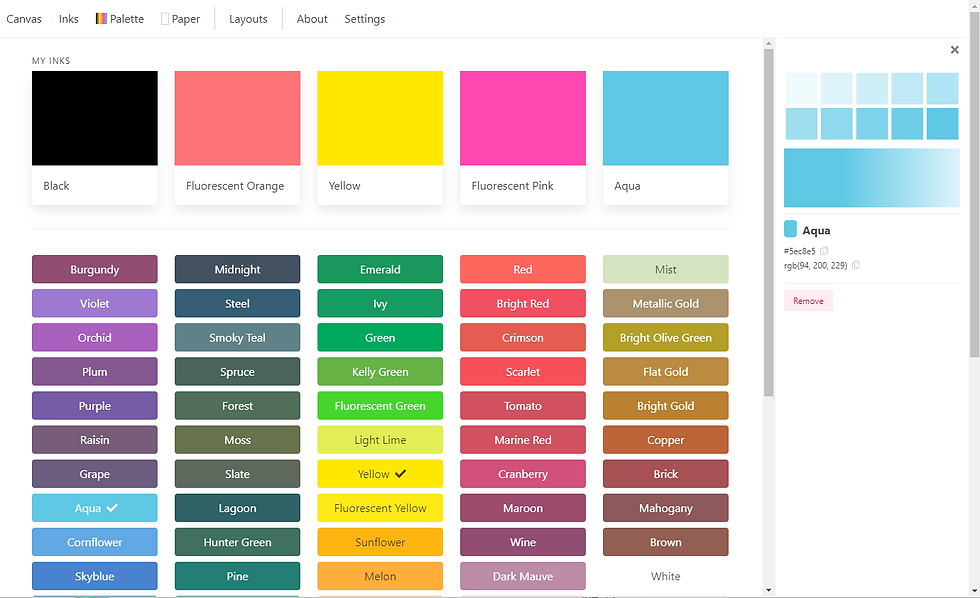
Step 3: At the top, click 'Palette'. This is where you can create different color combinations to test out.

Step 4: To create a new palette with all 4 colors we have available, click 'New Palette' at the top right.

Step 5: Add the ink colors to the palette by clicking the ink thumbnails. Hit 'Save' at the top right once you've added all 4 colors.

Step 6: Make sure your palette is selected under 'Palette' at the top.

Step 7: Click on 'Canvas' at the top left to return to the main window. Now that you have a palette selected, you can begin to preview your final image! On the right hand side, under 'Style', you can change the mode -- I recommend trying 'Halftone' first!

Here, you can play with the angle of each layer, as well as the size of the halftone (those dots indicate whether the pattern is smaller or larger!) and the opacity of each layer. Play around with these settings and see what you like best - don't forget to mess around with the other options!
Step 8: Once you've decided how you're happy with how the preview looks, you can use the 'Exports' section to export your image as a PDF (with each color on a different page).

This would be the file you'd send to us if you wanted to have us print something on the risograph for you!
This program is an amazing (and again, FREE!) tool that I cannot recommend more if you lack the access to Photoshop, or just the general know-how. Check out their website for more tutorials on how to use the program, and if you're a Mac user, there's extra tools you can check out that's available for you to use (alas, I won't be writing any posts about them anytime soon, as a Windows user).
Stay tuned, next time we'll talk about how to adjust photos and scanned collages to print on the risograph!


Comments